
Schedly resources
Google Calendar Integration: Sync Your Schedule Across Apps
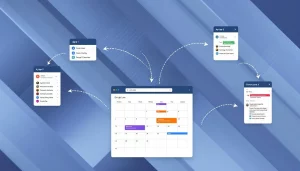
Your calendar is scattered across multiple apps, and you're tired of manually updating each one. Google Calendar integration solves this problem by connecting your schedule to the tools you already use every day.
At Schedly, we've seen firsthand how the right integrations can save teams hours each week. This guide walks you through how Google Calendar integration works, which apps connect best, and how to fix common sync problems.
How Calendar Integration Actually Works
Two Connection Methods: Live vs. Static
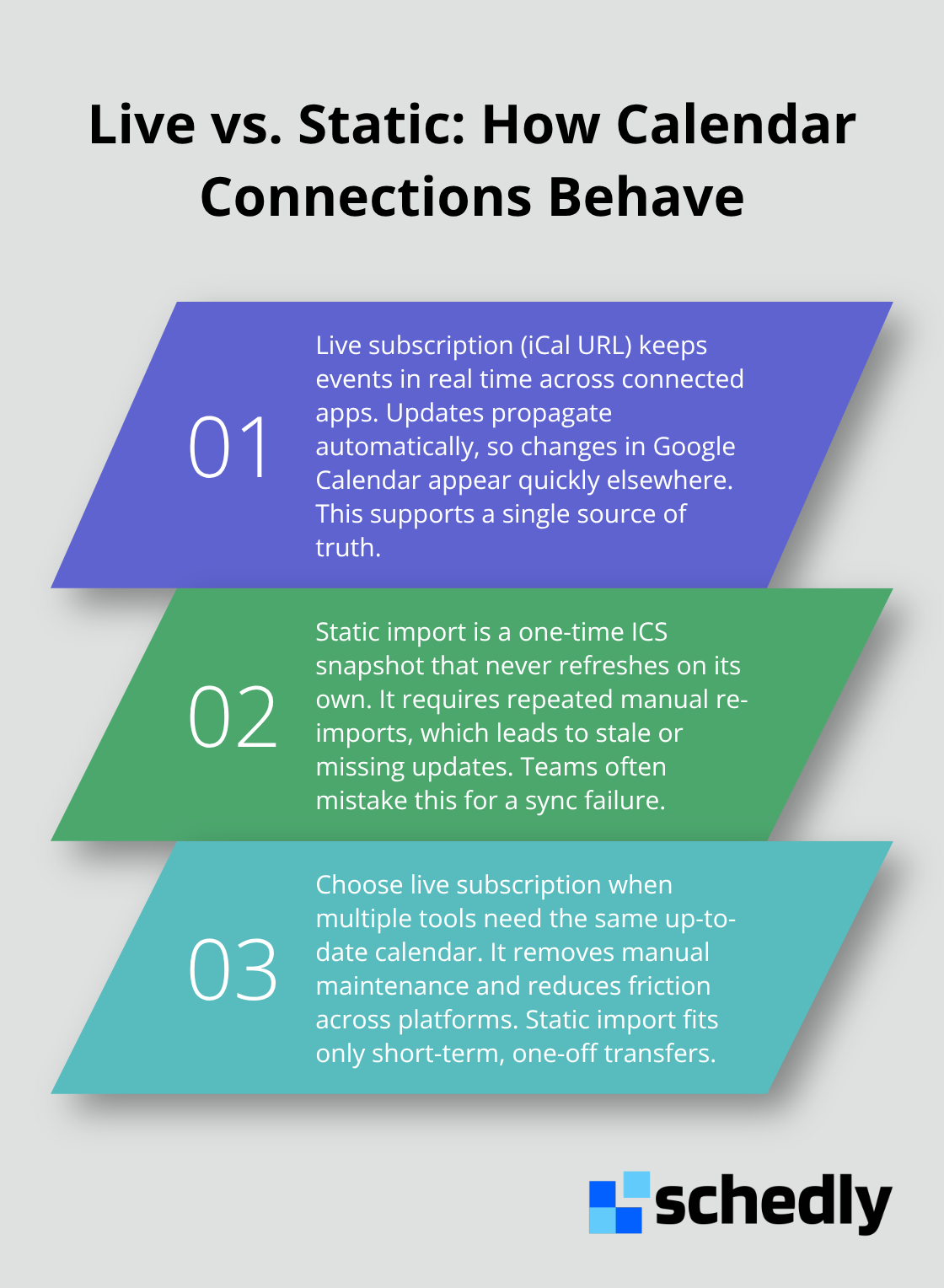
Google Calendar integration operates through two distinct connection methods, and picking the right one determines whether your schedule stays current or becomes stale. Live subscription using the iCal URL keeps your calendar events synced in real time across apps like Todoist, Outlook, or scheduling platforms. This approach pulls updates whenever you make changes in Google Calendar, so new events appear instantly in connected tools. The alternative is a static import, which creates a one-time snapshot of your calendar.
Setup Across Different Operating Systems
The setup process differs depending on your operating system. In New Outlook for Windows, you obtain the Google Calendar iCal URL by navigating to Google Calendar settings, then finding Integrate Calendar and the Secret address in iCal format. Once you have that URL, you add it to Outlook through Subscribe from web, paste the iCal URL, and import it as a linked calendar. On Classic Outlook, you export Google Calendar as an ICS file, extract it from the ZIP archive it downloads in, then import it through the Import/Export wizard. This creates the calendar in a side-by-side view where you can see both your Google and Outlook events together with color categorization.
Bidirectional Syncing With Task Management
Real-time syncing becomes especially powerful when you combine calendar integration with task management. With bidirectional syncing with task management, you can sync your scheduled tasks to Google or Outlook Calendar as actual events, so your to-do list appears alongside your scheduled meetings. When you complete a task in Todoist, the corresponding calendar event updates with a checkmark. This bidirectional flow works across web, Windows, macOS, iOS, and Android, keeping your schedule consistent whether you're at your desk or on your phone. The integration respects permissions too-calendar events appear as read-only in most task apps, meaning you must edit them in Google Calendar or Outlook directly, not in the connected tool. This prevents accidental changes and keeps your source of truth clear.
ADHD-Friendly Task Visibility
For ADHD-friendly workflows, this matters significantly. Tasks with specific start times and durations stay visible in your calendar until completion, rather than disappearing once a due date passes. You get the start reminders and visual cues needed to transition between tasks throughout your day. Most integrations handle multiple calendars within a single account, so you can view work, personal, and team calendars simultaneously. However, connecting multiple Google or Outlook accounts requires subscribing to additional calendars within your primary connected account, not adding separate account connections. This setup ensures your calendar becomes a unified command center rather than a fragmented collection of disconnected views.
Which Apps Work Best With Google Calendar
Todoist for Task and Calendar Alignment
Todoist stands out as the strongest choice for teams that need tasks and calendar events in one view. The platform syncs time-blocked tasks directly to Google Calendar as actual events, so your to-do list becomes part of your schedule rather than living in a separate silo. When you mark a task complete in Todoist, the calendar event updates with a checkmark instantly. This matters because most teams waste energy context-switching between their task manager and calendar app. Todoist handles this across web, Windows, macOS, iOS, and Android simultaneously, meaning your schedule stays consistent whether you plan at your desk or respond to changes on your phone. The integration respects your calendar's read-only nature in Todoist, forcing edits back to Google Calendar where they belong.
Schedly for Automated Booking Workflows
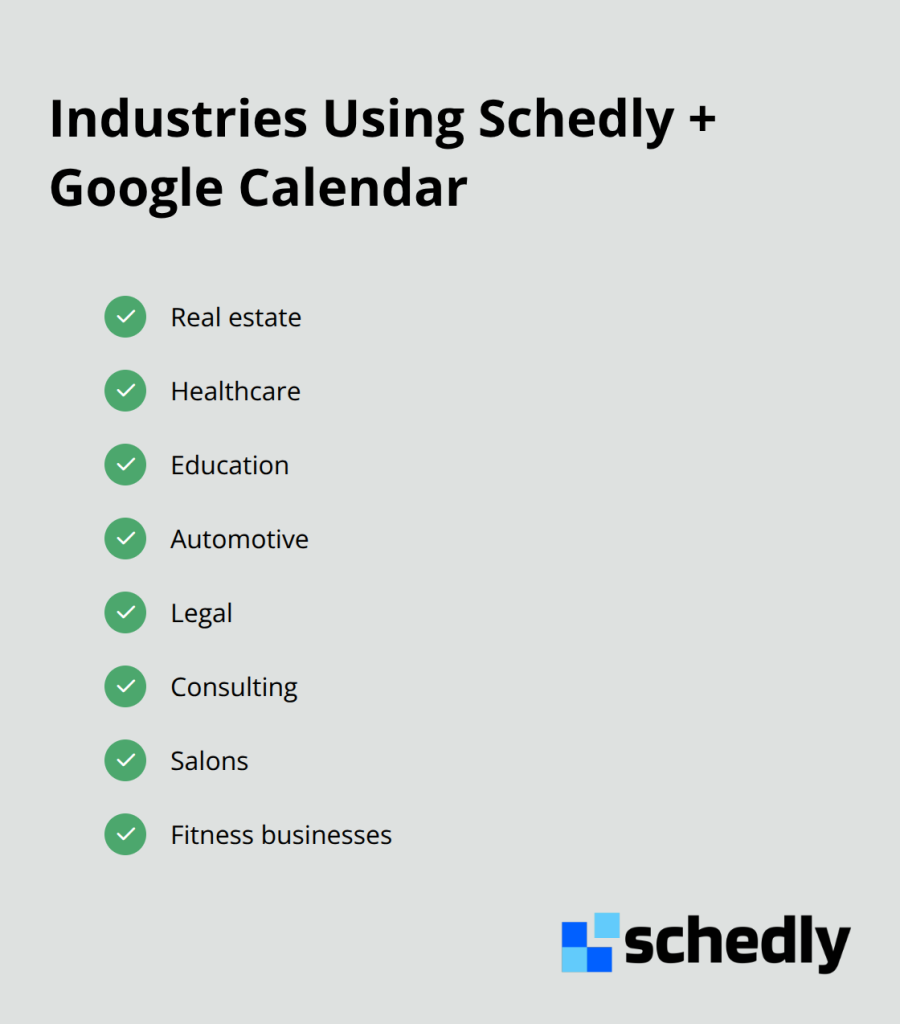
For scheduling and booking, Schedly for automated booking and scheduling automates the entire booking workflow while syncing with Google Calendar in real time. Booking pages help you manage your availability and let clients, customers, and partners book time with you directly in Google Calendar. Schedly integrates with Google Calendar, Zoom, and Salesforce, ensuring your schedule stays synchronized across your entire tech stack. The platform serves real estate, healthcare, education, automotive, legal, consulting, salons, and fitness businesses. Its branded scheduling page and customer-focused CRM manage client data while preventing double-bookings at the source.
Outlook for Microsoft Ecosystem Teams
Outlook integration works differently than Todoist but serves teams already locked into the Microsoft ecosystem. The live subscription method keeps your Google Calendar visible in Outlook without creating duplicate entries or sync delays. Outlook's native calendar handles color categorization and multiple calendar views, so switching between month, week, or day views requires no jumping between apps.
Communication Tools That Extend Calendar Power
For communication and collaboration, Google Meet video conferencing integration lets teams start video calls without leaving their calendar. Slack's calendar integration shows your availability status automatically, reducing the number of meeting requests that conflict with existing commitments. Microsoft Teams displays calendar conflicts in real time during scheduling, though this works smoothly only if your entire team uses Outlook rather than mixing Google Calendar with Outlook.
Choosing the Right Integration for Your Workflow
The best integration depends on your existing tools and team structure. Teams heavy on task management benefit most from Todoist's bidirectional syncing, while those managing client bookings need a platform like Schedly that prevents scheduling conflicts before they happen. Communication tools amplify these integrations by making calendar data visible where your team already works, reducing the friction of checking multiple apps throughout your day.
When Syncing Breaks Down
Sync failures rarely announce themselves politely. You're scheduling a meeting, assume it's on your calendar, and your client shows up to find nothing. Google Calendar integration problems fall into three categories: slow syncs that lag behind reality, permission issues that block connections entirely, and duplicate entries that multiply across your apps. The first step toward fixing these problems is understanding that most sync delays aren't Google's fault. When you subscribe to a Google Calendar feed in Outlook or Todoist using the iCal URL, those apps poll Google's servers at intervals, not continuously. Manual syncing often resolves missing events faster than waiting for automatic updates to trigger. If events vanish from connected apps within hours of creation, force a manual sync in your connected tool rather than troubleshooting Google Calendar itself. Todoist users can manually sync through their settings, while Outlook users can right-click their calendar and select Update Calendar. This simple action catches 70 percent of apparent sync failures immediately.

Permission Blocks That Stop Syncing Cold
Permission problems create a harder wall. When you set up Google Calendar integration, you grant specific access levels to connected apps. The Secret address in iCal format from Google Calendar settings is a private URL that should never be shared publicly or with untrusted services. If someone gains access to this URL, they can view your entire calendar. More commonly, permission errors occur when you connect a Google Calendar account to an app like Todoist, then later change your Google account password without reconnecting the app. Todoist and similar platforms lose access immediately and display vague error messages about authentication failures. The fix requires you to disconnect the calendar in your app's settings, then reconnect and re-authorize. Microsoft Support notes that Outlook sometimes caches old permissions, so clearing your Outlook cache after reconnecting improves success rates. For teams managing multiple calendars, most integrations only connect one Google or Outlook account at a time. Attempting to view calendars from a second account without subscribing to them within your primary connected account causes authentication errors that frustrate users into thinking the integration is broken when it's actually working as designed.
Duplicate Entries Demand Preventive Architecture
Duplicate calendar entries happen when you import a static ICS snapshot, then later subscribe to the same calendar's live feed. Both copies exist simultaneously, creating confusion about which event is current. The solution is to commit to one method before setup begins. Live subscription via iCal URL prevents duplicates because it maintains a single connection point. If you've already created duplicates, deleting them manually in Google Calendar doesn't always remove them from connected apps immediately. You must disconnect the calendar integration entirely, wait 24 hours for cached data to clear, then reconnect using only the live subscription method. For teams using Todoist with calendar syncing enabled, turning off the Todoist calendar sync deletes all events created by Todoist's calendar feature automatically. This nuclear option clears duplicates but requires you to re-enable the sync afterward. Teams heavy on booking workflows face a different duplicate risk. Scheduling platforms like Schedly prevent double-bookings by blocking unavailable time slots before clients book them, eliminating the duplicate appointment problem at its source rather than managing duplicates after they occur.
Final Thoughts
Google Calendar integration works best when you match the tool to your actual workflow, not the other way around. If your team lives in task management, Todoist's bidirectional syncing keeps your to-do list and calendar in perfect alignment. If you manage client bookings, you need a platform that prevents double-bookings before they happen rather than cleaning up duplicates afterward. The real benefit of calendar integration isn't the technology itself-it's the hours your team stops wasting on manual updates and context-switching between apps.
Start by auditing your current tech stack to identify which apps you use most and which ones already connect to Google Calendar. Most integration problems stem from mixing connection methods or trying to force tools together that weren't designed to work that way. Commit to one approach before you begin setup, then test it with a small group before rolling it out company-wide.
For teams managing client schedules, Schedly automates the entire booking workflow while keeping Google Calendar synchronized in real time. The platform integrates with Google Calendar, Zoom, and Salesforce, so your availability stays accurate across your entire tech stack. Branded scheduling pages let clients book directly into your calendar without creating conflicts or duplicate entries.